Sign in
AutoDial uses the same username and password as your CallSpoofing account.
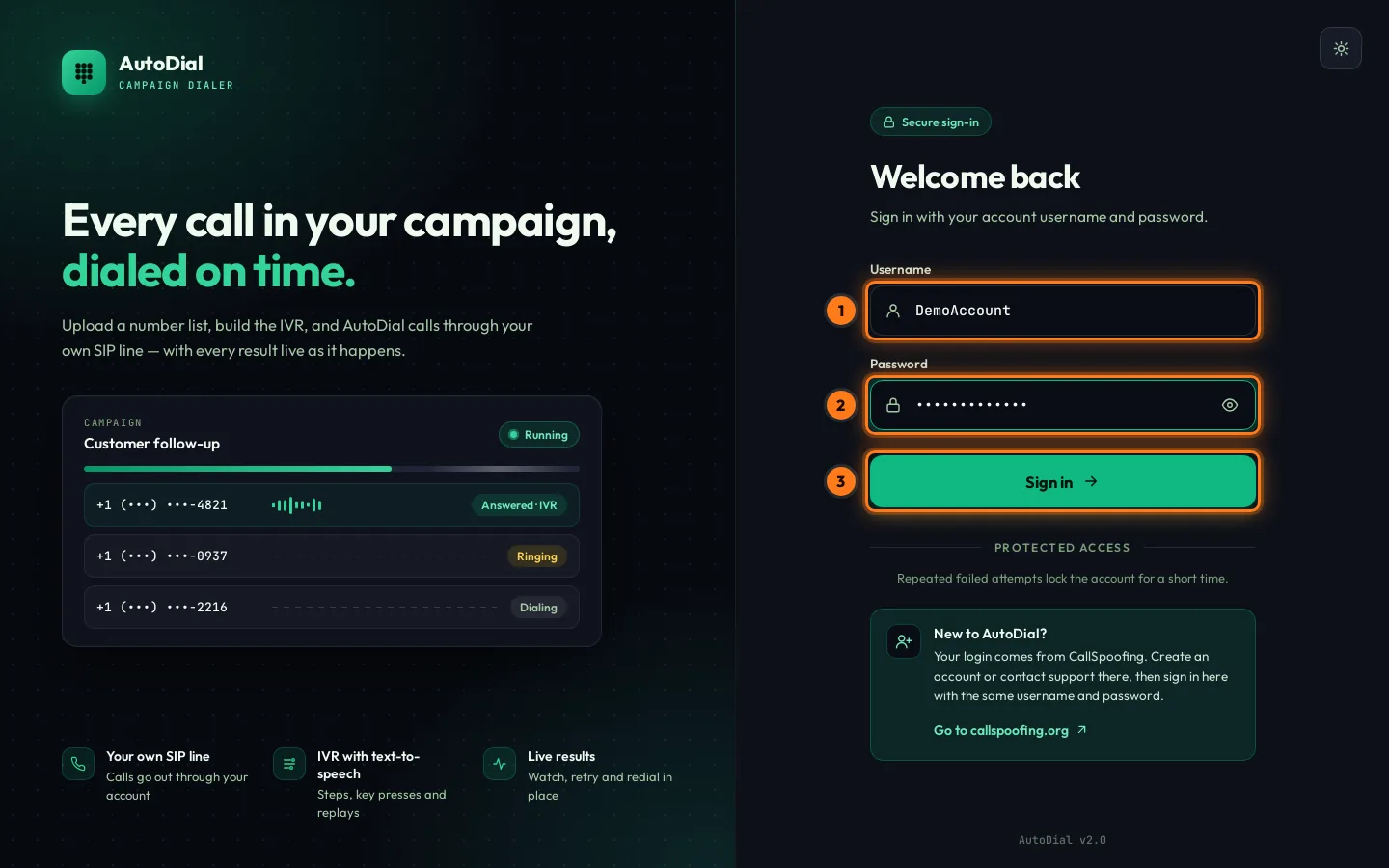
- Username — type your CallSpoofing username.
- Password — type your password. The eye icon shows what you typed.
- Sign in — press the button or hit
Enter. You land on the dashboard.
Locked out? After 5 wrong passwords in a row the account is locked for 30 minutes. The page shows a countdown. Wait for it to finish, then try again.
No account yet? Create one on callspoofing.org, then sign in here with the same details. The moon/sun button at the top right switches between the dark and light theme.
The dashboard at a glance
Everything happens on one screen. You set up the campaign on the left and watch the results on the right.
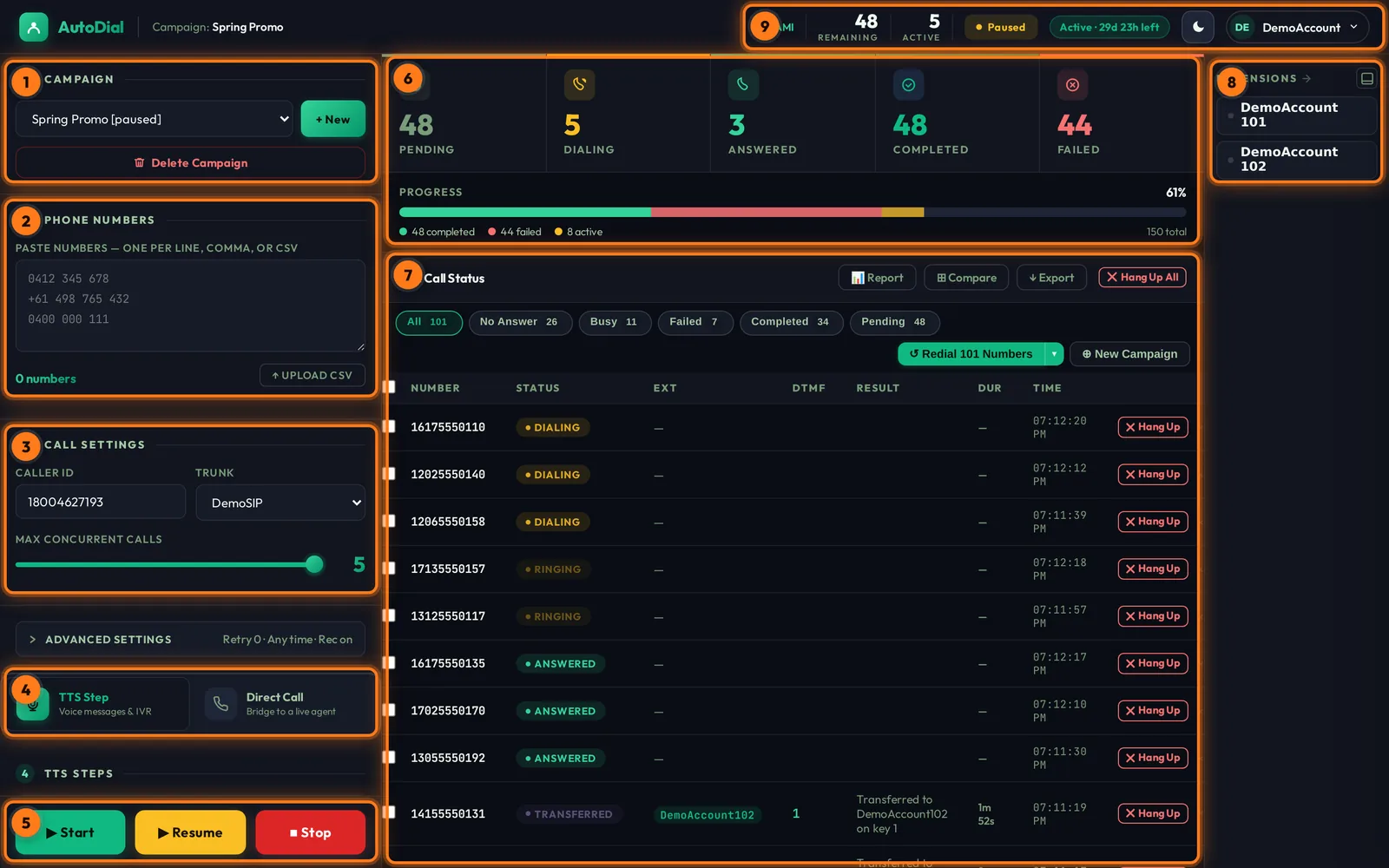
- Campaign — pick a campaign from the list, create a new one with
+ New, or delete it. - Phone numbers — paste the numbers to call, or upload a CSV file.
- Call settings — caller ID, your SIP line (trunk) and how many calls run at once.
- Call type & TTS steps — choose TTS Step (voice messages and IVR) or Direct Call, then build the steps underneath.
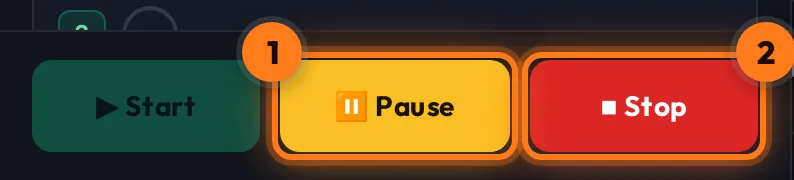
- Start / Pause / Stop — the campaign controls. They stay at the bottom of the left column.
- Counters & progress — Pending, Dialing, Answered, Completed and Failed, plus a progress bar.
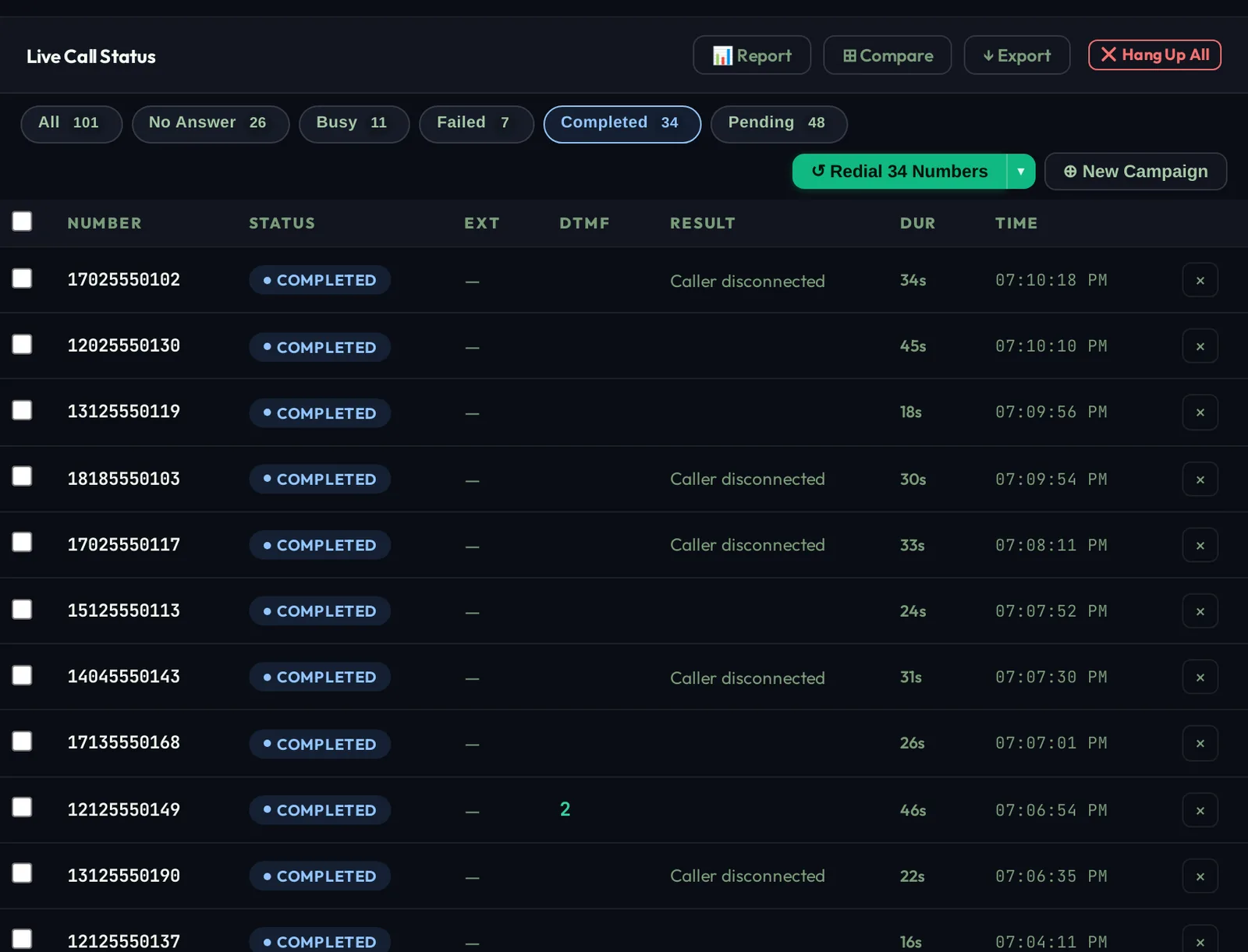
- Live Call Status — every number with its live status, the keys pressed, the result and the duration.
- Extensions — your SIP extensions and whether they are online to take transfers.
- Status bar — dialer connection, remaining and active calls, campaign status, subscription and your account menu.
Subscription
You need an active subscription to make calls. Without one you can still sign in and prepare campaigns.
Without a subscription
A red banner at the top says you do not have an active subscription. The button on the right shows the current monthly price.
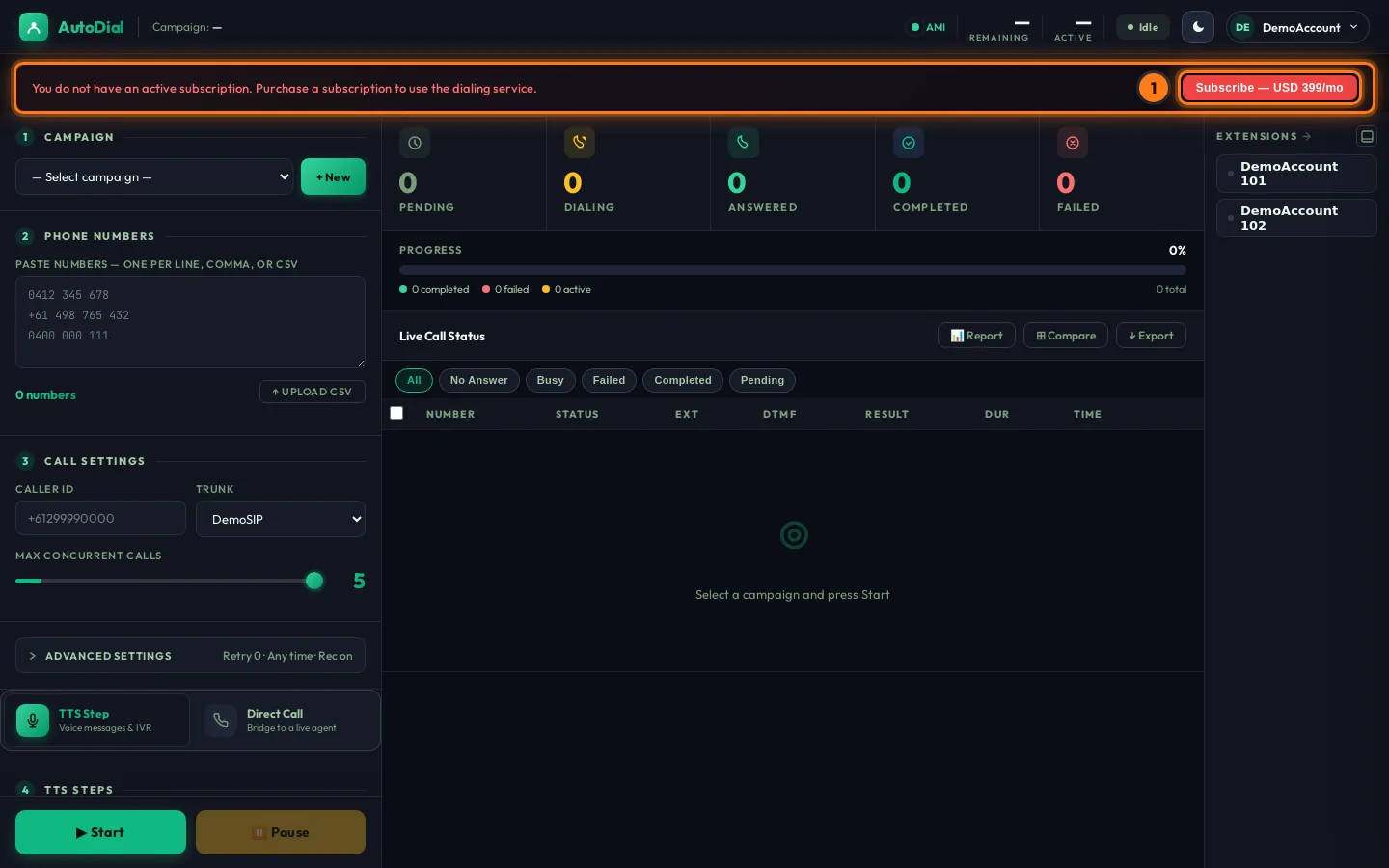
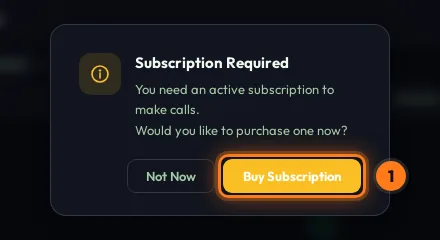
If you press Start without a subscription, AutoDial asks whether you want to buy one. Choose Buy Subscription to continue, or Not Now to keep preparing your campaign.
Buy a subscription
- Click Subscribe — USD …/mo in the red banner (or Buy Subscription in the dialog above).
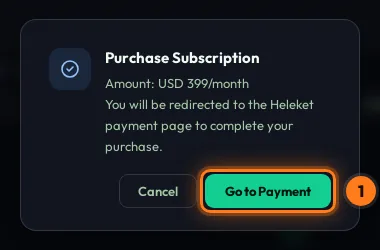
- Check the amount and press Go to Payment.
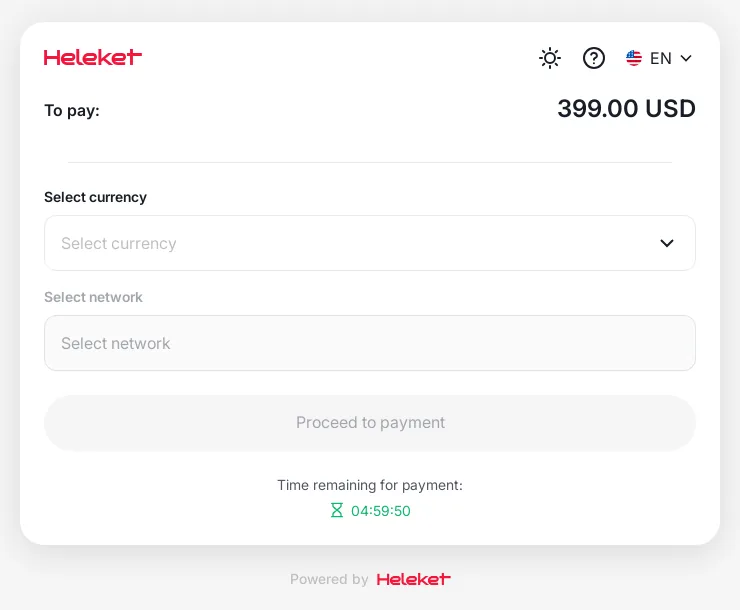
- The secure Heleket payment page opens in a new tab. Choose the currency and the network, then press Proceed to payment and send the exact amount shown. Payment is in crypto (for example USDT). Pay before the timer runs out.
- Your AutoDial tab switches to the payment status page. It says Pending until the blockchain confirms the payment, then Completed. The subscription turns on automatically.
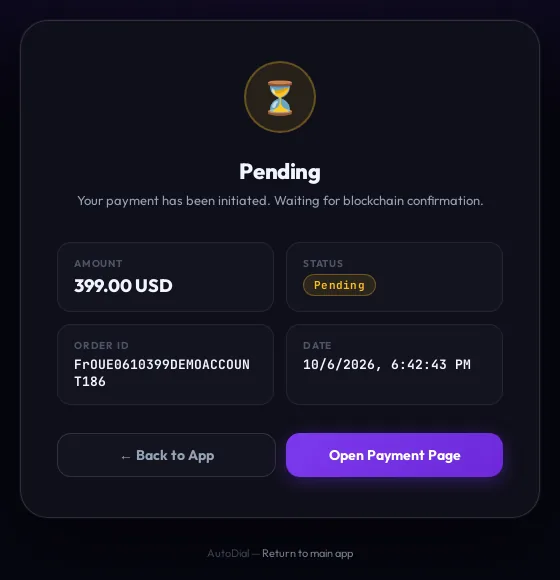
The status page shows the amount, the status, your order ID and the date.
Open Payment Page takes you back to the Heleket page if you closed it. Back to App returns to the dashboard.
Keep your order ID. If a payment does not show up, send it to support. You can always find it again in Payment history.
With an active subscription
The red banner disappears and a green chip in the status bar shows how many days are left.

Account menu
Click your username at the top right to open it.
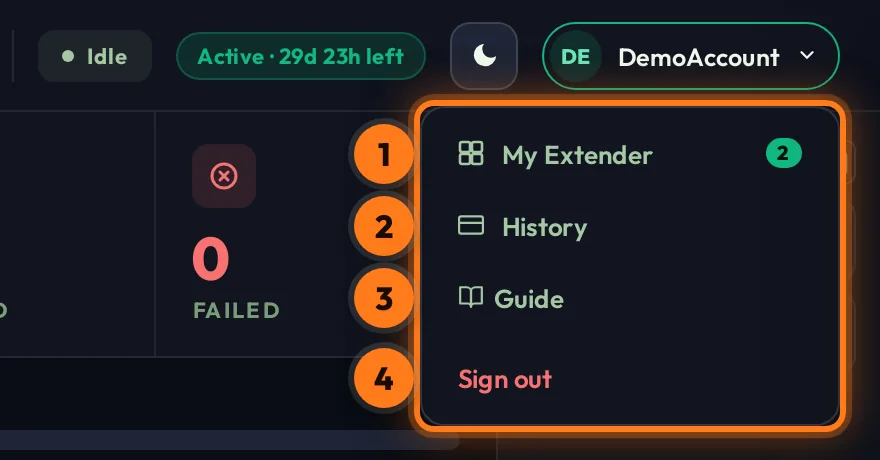
- My Extender — your SIP extensions and their login details, for receiving calls. The green number is how many you have.
- History — your payment history.
- Guide — opens this guide.
- Sign out — logs you out of AutoDial.
My Extender & softphones
Extensions are the phone lines your agents use. When a caller presses the agent key, the call is transferred to one of these extensions.
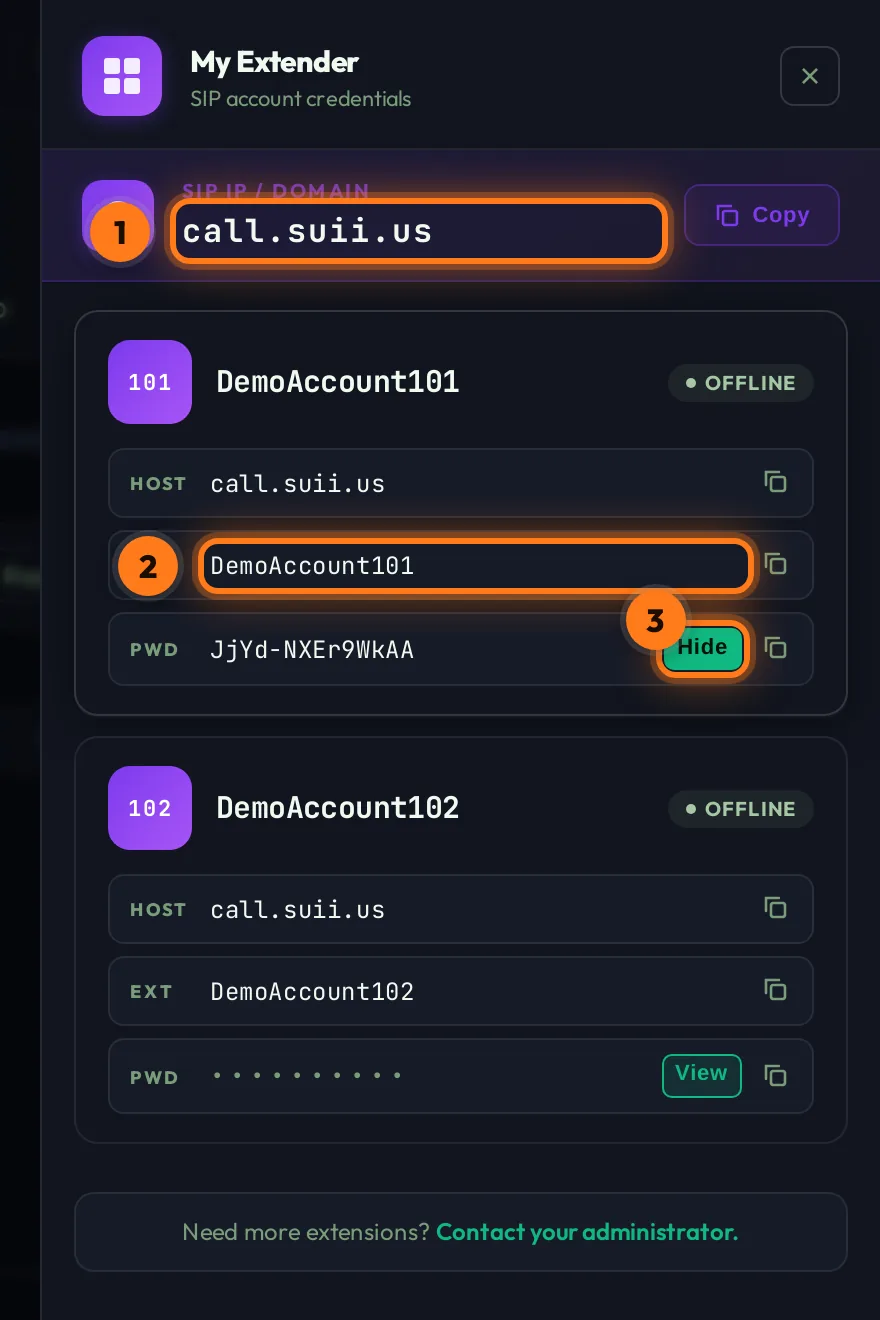
- SIP IP / Domain — the server address you enter in your softphone. Copy puts it on your clipboard.
- EXT — the extension name. It is also the softphone username.
- PWD — the extension password. View shows it, and the copy icon copies it.
The badge at the top of each card shows OFFLINE or ONLINE. An extension shows ONLINE while a softphone is logged in with it, and only online extensions receive transferred calls.
Keep these passwords private. Anyone who has them can log in as your agent.
Log in on a softphone
Any SIP softphone works. Use these settings, with your own extension and password from My Extender:
- Install MicroSIP from microsip.org and open it.
- Click the small ▾ arrow at the top right → Add Account.
- Fill in the fields as below and press Save.
The bottom of the MicroSIP window shows Online once it has connected.
- Install Zoiper 5 from zoiper.com (or from your app store) and open it.
- On the login screen enter Username as
EXT@call.suii.us(e.g.DemoAccount101@call.suii.us) and your Password, then press Login. - Hostname:
call.suii.us→ Next. - Authentication and outbound proxy: leave them off → Skip.
- Zoiper tests the connection. Choose SIP UDP → Finish.
A green tick next to the account means it is registered. On mobile, leave Zoiper running in the background so it can ring.
- Install Linphone from linphone.org (or from your app store) and open it.
- Choose Use a SIP account (sometimes called Account assistant → Use SIP account).
- Enter the details below and press Login.
A green dot next to the account name means it is connected.
Log each extension in on one device only. Keep the softphone open while your campaign runs, then check that the extension shows ONLINE in the Extensions list on the right of the dashboard. During a call, agents can pass the caller to each other: see Agent-to-agent transfer.
Payment history
Every subscription payment you have started, with its status.
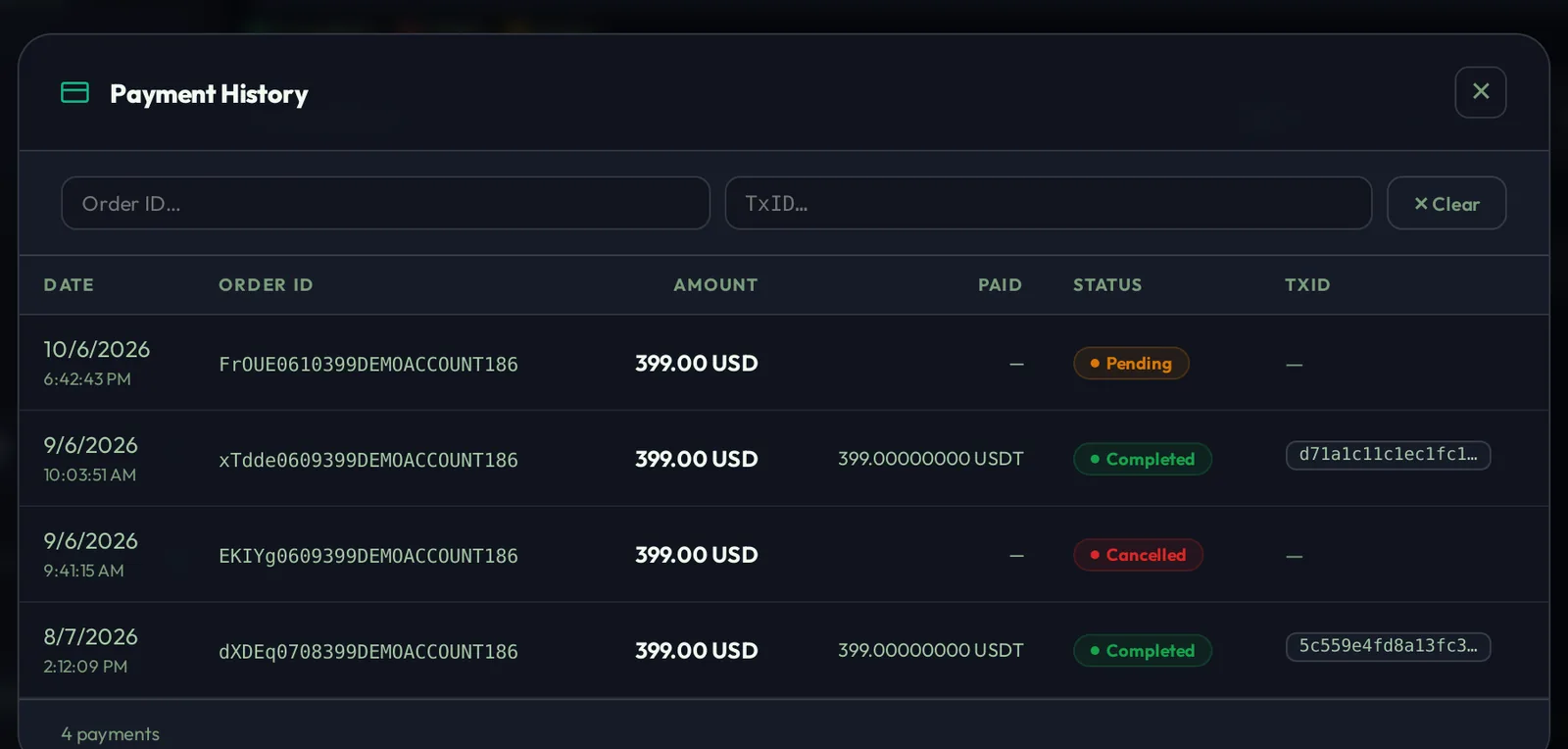
| Column | What it shows |
|---|---|
| Date | When the payment was started. |
| Order ID | Your unique order number. Use it when you contact support. |
| Amount / Paid | The subscription price, and the amount actually received in the coin you paid with. |
| Status | Pending (waiting for payment), Completed (paid, subscription active), Cancelled or Failed (not paid), Refunded. |
| TxID | The blockchain transaction ID of a completed payment. |
Use the Order ID and TxID boxes at the top to search, and Clear to reset the search.
Create a campaign
A campaign is one calling job: a list of numbers, a caller ID and the message people hear.
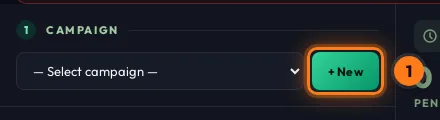
In section 1 · Campaign on the left, click + New.
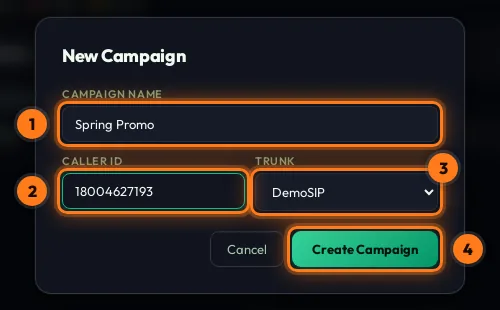
- Campaign name — anything that helps you recognise it, e.g. Spring Promo.
- Caller ID — the number people see when you call them. Use one of your DID numbers in US format:
1+ 10 digits, for example the toll-free18004627193. - Trunk — your SIP line. It is already selected for you.
- Create Campaign — the new campaign opens straight away.
You can change the caller ID later in Call settings. To remove a campaign, select it and press Delete Campaign under the list.
Add phone numbers
Paste the numbers you want to call, or upload a CSV file.
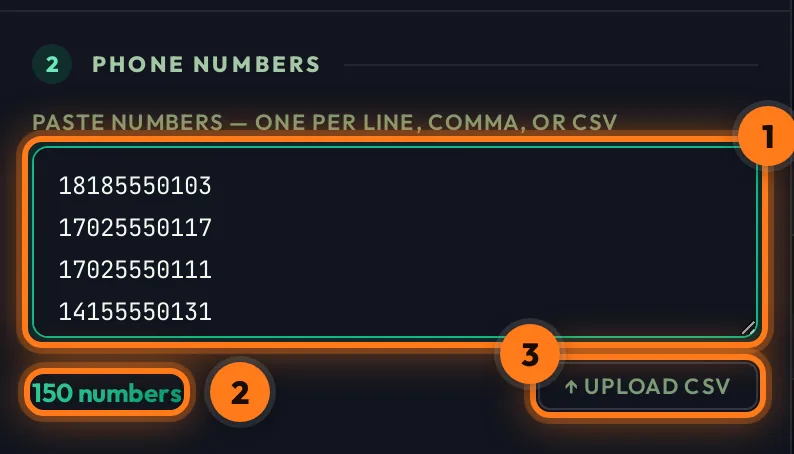
- Paste numbers — one per line, or separated by commas.
- Counter — shows how many valid numbers AutoDial found (here 150).
- Upload CSV — load a spreadsheet instead of pasting.
Number format
Write US numbers as 1 + area code + number, 11 digits in total:
Spaces, dashes, brackets and + are removed automatically, and duplicates are removed. Numbers on the Do-Not-Call list are skipped and marked Skipped.
CSV upload with names
Your CSV needs a column called phone (or number / mobile). You can also add name and ref columns. Then write {name} or {ref} in a TTS message and each caller hears their own value, e.g. "Hello {name}, …".
Numbers are saved when you press Start. If you upload a new list, it replaces the numbers that have not been called yet. Numbers that were already called keep their results.
Call settings
Who the call appears to come from, which line it uses and how fast you dial.
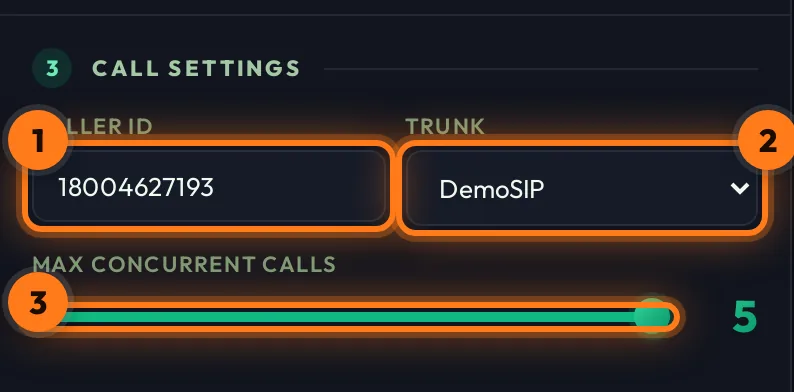
- Caller ID — the number shown to the person you call. Use one of your DID numbers in the 11-digit US format (for example a 1-800 toll-free number).
- Trunk — your SIP line. If you have more than one, choose which one to use.
- Max concurrent calls — how many numbers are dialed at the same time. Start low (around 5) and raise it if your agents can keep up.
TTS Step or Direct Call
Choose what happens when someone answers.
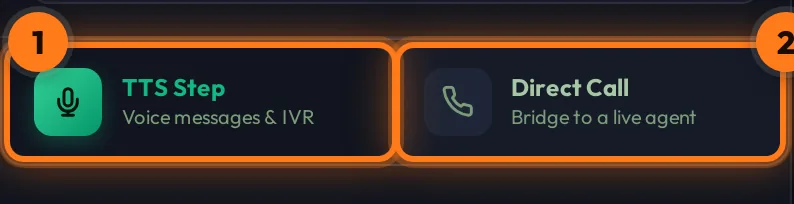
Voice messages & IVR
The caller hears your messages (text-to-speech or your own audio), can press keys, and can be transferred to an agent. Most campaigns use this. See Build the IVR.
Bridge to a live agent
No messages. As soon as someone answers, the call goes straight to one of your agents.
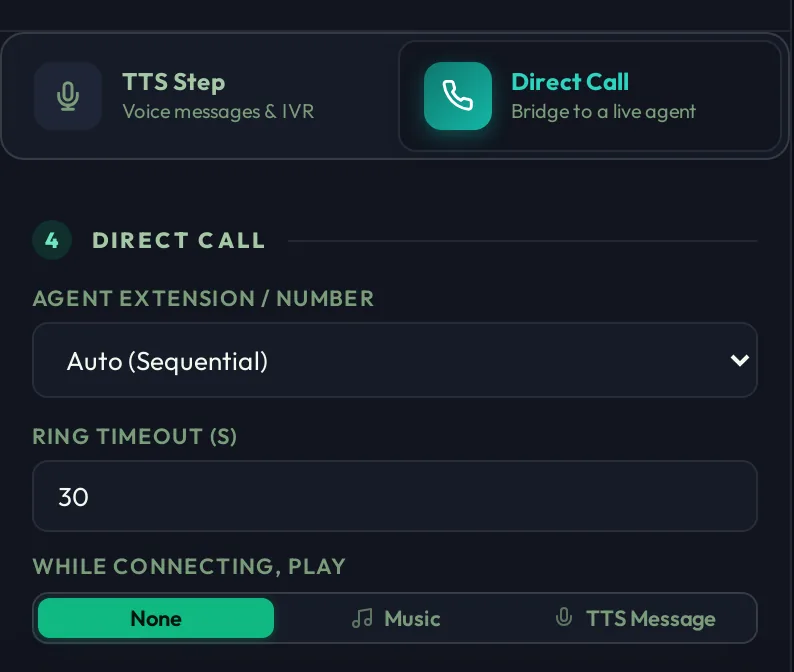
Direct Call settings:
Agent extension / number — who gets the call. The choices are the same as for transfers: Auto (Sequential), All Now (Simultaneous) or one specific extension (see Transfers).
Ring timeout (s) — how long to ring the agent before giving up.
While connecting, play — what the caller hears while the agent's phone rings: None, Music or a short TTS Message.
Build the IVR
With TTS Step selected, section 4 · TTS Steps holds your call script. Each step plays one message, and the steps run in order, from step 1 to step 10.
Example used in this guide
1. How many steps
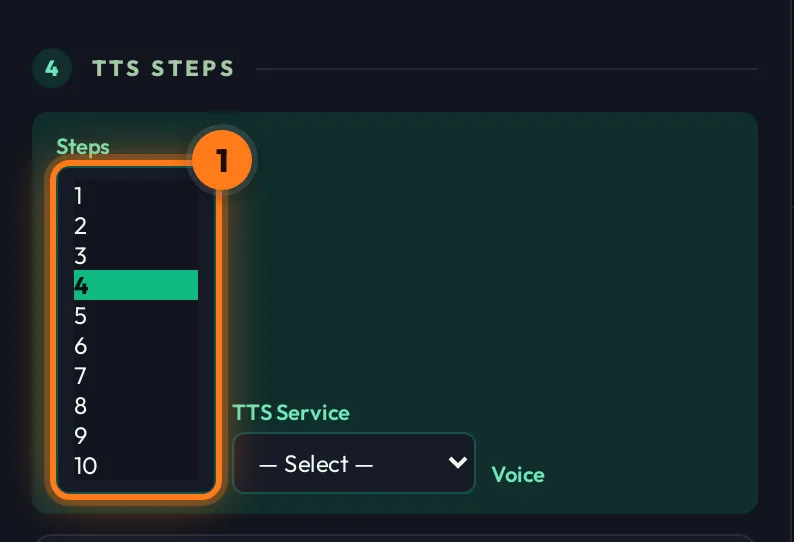
Choose the number of steps in Steps, from 1 up to 10. One card appears for each step. The example uses 4.
2. Choose the voice
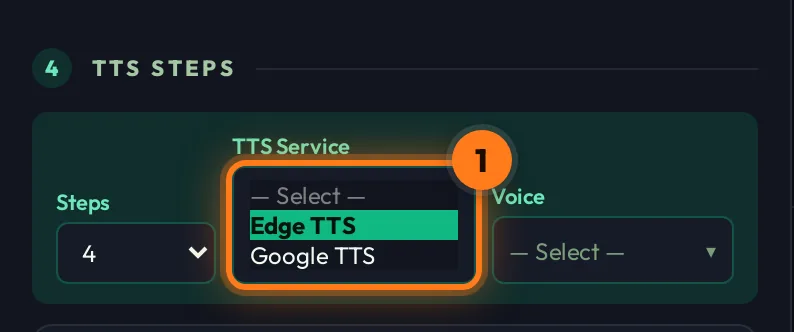
TTS Service chooses the speech engine that reads your text aloud:
Edge TTS — 300+ natural voices with names, countries and male/female options.
Google TTS — a clear Google voice in more than 60 languages. You choose a language instead of a voice.
The voice you choose is used for every step.
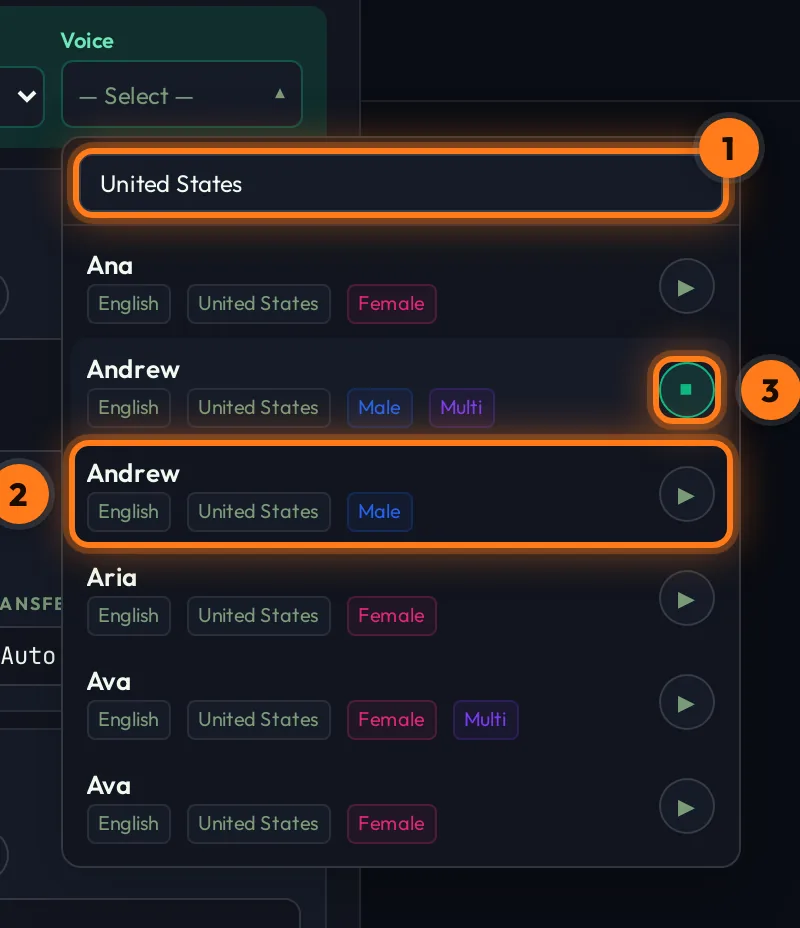
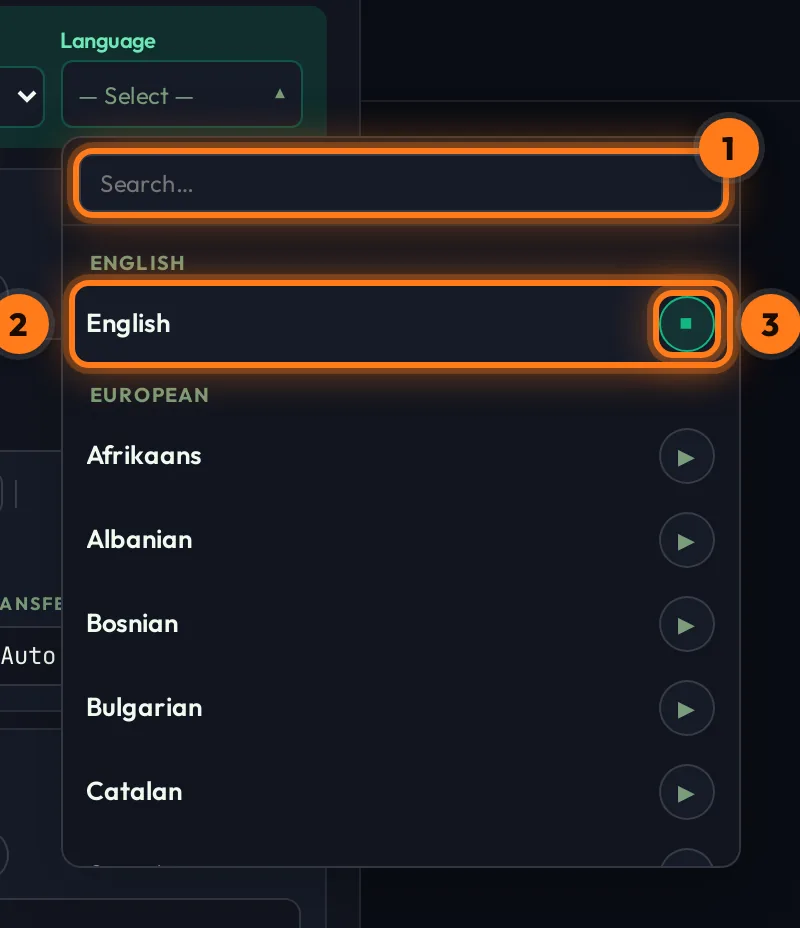
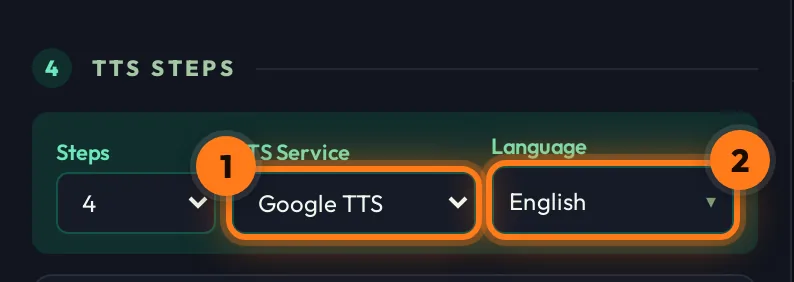
The example uses Google TTS (1) with English (2).
3. What a step card contains
TTS Text or Audio File
Type the words to be spoken, or upload your own recording.
On DTMF or Auto-timer
Wait for the caller to press a key, or wait a set number of seconds and move on.
Agent Key & extension
Which key sends the caller to an agent, and which agent gets the call.
Step 1 — Welcome message (TTS text)
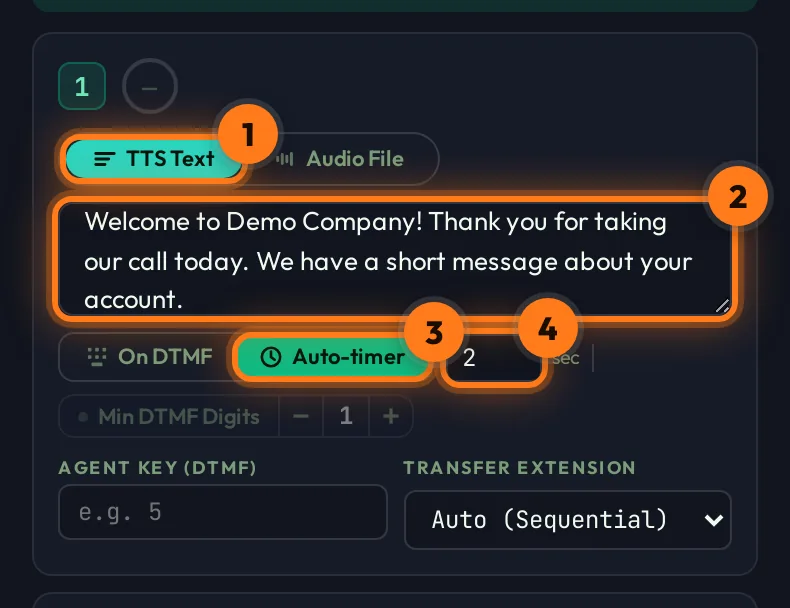
- TTS Text — this step speaks typed text.
- Message — type what the caller hears, e.g. “Welcome to Demo Company! Thank you for taking our call today…”
- Auto-timer — no key press needed; the call moves on by itself.
- Seconds — the pause after the message (2 s here) before the next step.
Step 2 — Your own recording (audio file)
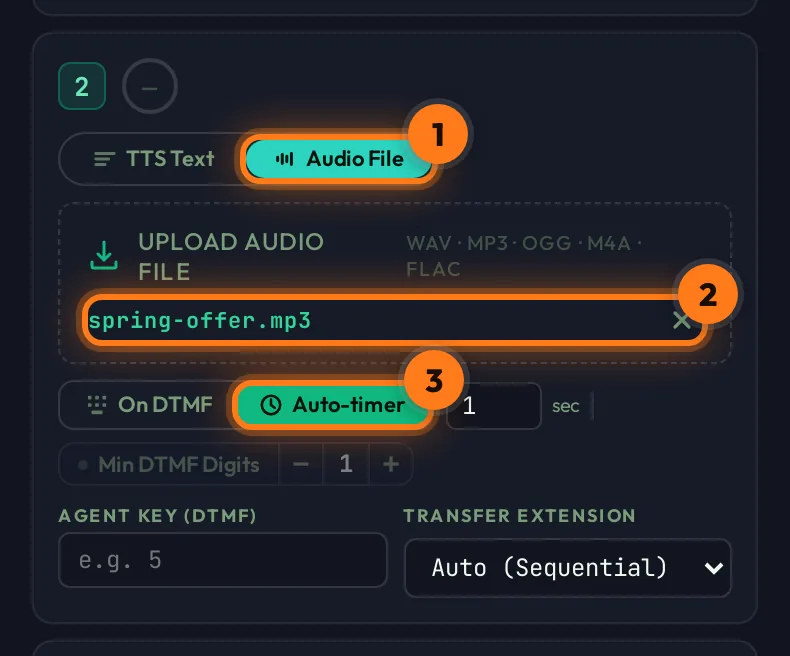
- Audio File — switch the step from text to a recording.
- Upload — click the box and pick a WAV, MP3, OGG, M4A or FLAC file. The file name appears when the upload is done, and × removes it.
- Auto-timer — move on after the recording plays.
Step 3 — On DTMF or Auto-timer
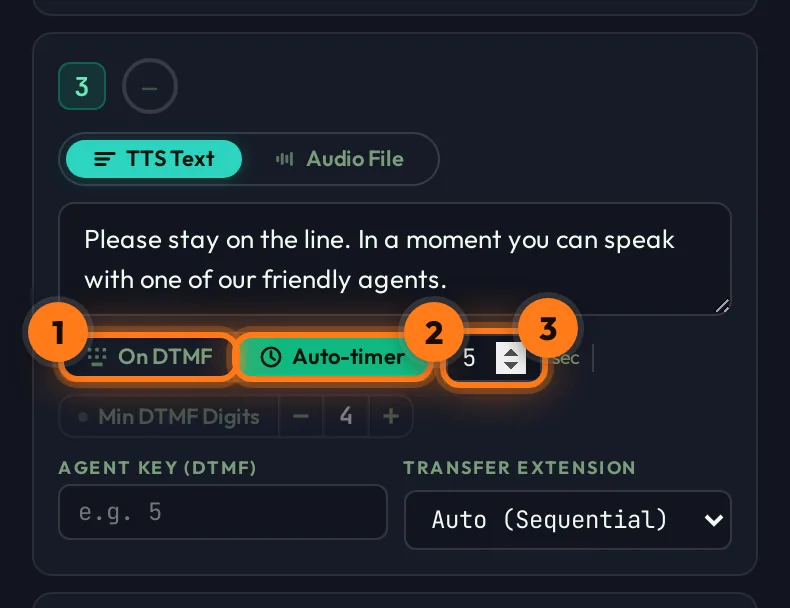
- On DTMF — after the message, the call waits for the caller to press a key (DTMF = phone keypad tones). If nobody presses anything for a few seconds, it continues to the next step.
- Auto-timer — after the message, the call waits the number of seconds you set and then continues automatically. Keys pressed during the wait are still recorded.
- Seconds — the Auto-timer wait. This step waits 5 s.
Min DTMF Digits — collecting a code
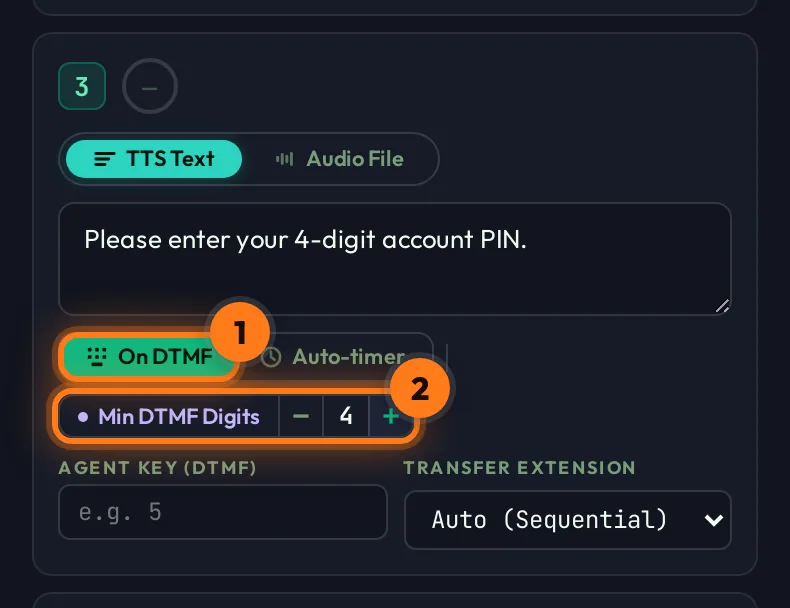
- On DTMF must be selected. Min DTMF Digits only works when the step waits for keys.
- Min DTMF Digits — click the small switch in front of the label to turn it on, then use −/+ to set how many digits the caller must enter (here 4, e.g. a PIN).
The caller types the digits and can finish with #. If they enter fewer digits than required, the message is played again, up to 3 times. After that the call ends with the result “No DTMF after 3 attempts”. Leave it off when you only need a single key such as 1.
Agent key & transfers
The last step usually offers the caller a live agent. When they press the agent key, AutoDial transfers the call to one of your extensions. That agent can then pass the call to a colleague.
Step 4 — Transfer to an agent
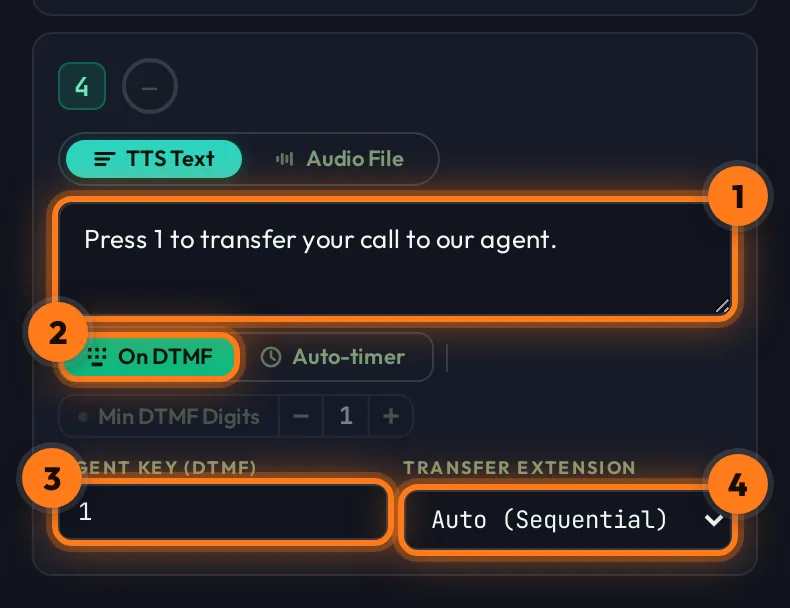
- Message — tell the caller which key to press: “Press 1 to transfer your call to our agent.”
- On DTMF — wait for the key press.
- Agent Key (DTMF) — the key that triggers the transfer, here
1. It is required on every On DTMF step that has a message. - Transfer Extension — which agent receives the call (the three options are below).
The three transfer options
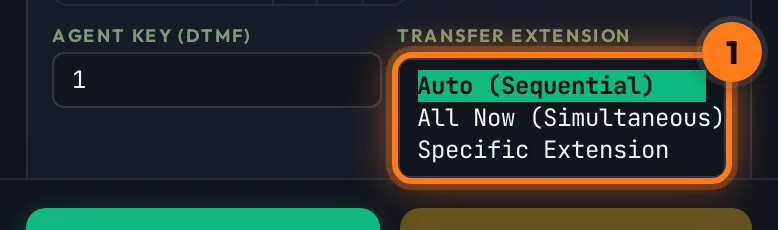
Open the Transfer Extension list to choose how the call reaches your agents. Only extensions that are ONLINE (logged in on a softphone) are used.
One after another
Rings your online extensions in order (101, then 102, …). If one is busy or does not answer, the next is tried, until someone picks up. Good for spreading calls over a team.
Everyone at once
Rings all your online extensions at the same time. The first agent to answer gets the call. The fastest way to connect the caller.
Always the same agent
Sends every transfer to the one extension you pick from the second list. Use it when one person handles this campaign.
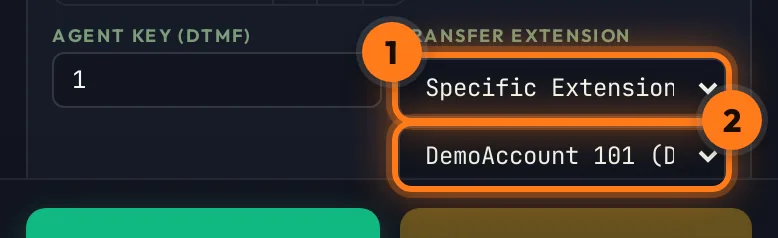
With Specific Extension (1), a second list appears (2). Choose the extension there.
A transferred call shows Transferred in the live table, with the agent's extension in EXT and the pressed key in DTMF. If no agent answers, the result says “No extension answered”.
Agent-to-agent transfer
An agent who has taken a call can pass it to another of your extensions, for example from 101 to a supervisor on 102. The caller stays on the line the whole time.
102.Transfer button
During the call, press Transfer in MicroSIP, Zoiper or Linphone. Type the other extension, e.g. 102, and confirm. The call moves to that agent and your line is free again.
Press # then the extension
During the call, press # on the keypad, then dial the other extension, e.g. 102. The caller is transferred straight away.
- Which number to dial: the extension's 3-digit short code (the last three digits of its name, e.g.
101,102) or its full name (e.g.DemoAccount102). The names are in My Extender. - Only your own team: transfers only reach extensions on your own account, never another customer's.
- If nobody answers: the new extension rings for up to 30 seconds. If it is offline or does not answer, the call comes back to the agent who took it first, so the caller is not lost.
- Transfer again: the second agent can pass the call on in the same way, as many times as needed.
- Agents only: only your agents can transfer. A caller who presses
#does not move the call. - Live table: the EXT column updates to show the agent who has the call now.
The extension you transfer to must be ONLINE, which means logged in on a softphone. Check the Extensions list on the right of the dashboard.
The complete IVR
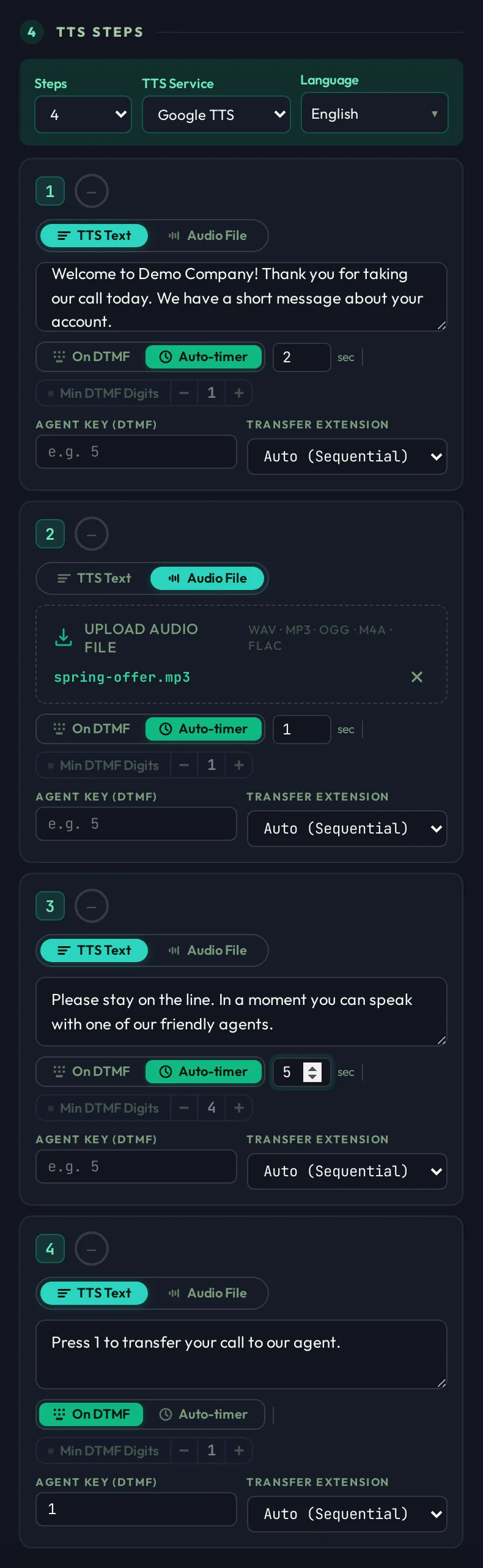
This is the finished four-step script from the example: welcome message, recorded offer, hold message, then the agent transfer on key 1.
When the last step finishes and the caller did not press the agent key, the call ends and is marked Completed.
If Start shows “Step N: Agent Key (DTMF) is required…”, that step is set to On DTMF without an agent key. Enter a key, or switch the step to Auto-timer.
Start the campaign
Pressing Start saves your numbers and settings, then asks you to confirm.
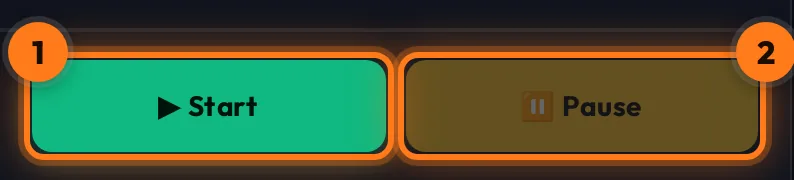
- Start — checks your steps, saves the numbers you pasted and every setting, then opens the launch window.
- Pause — is only active while a campaign is running (see Pause, resume, stop).
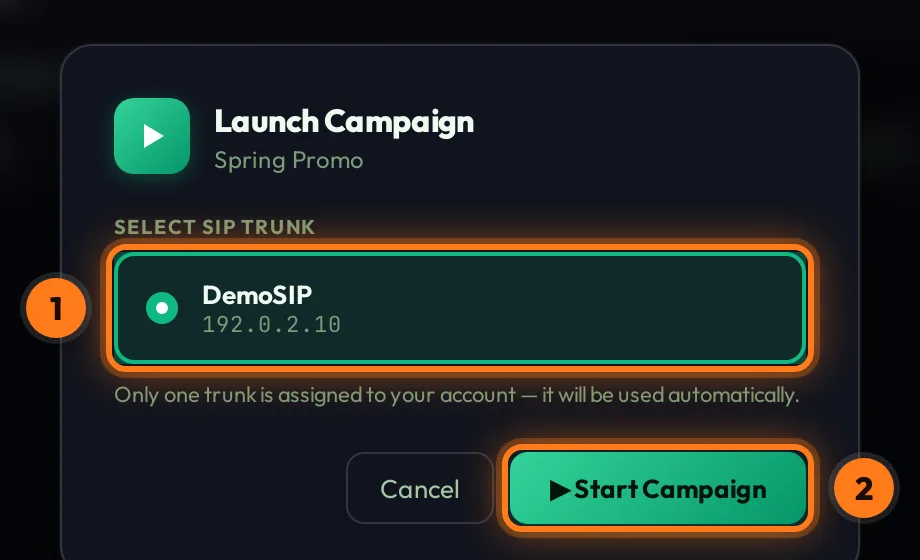
- Select SIP trunk — your line is already selected. If you have several, click the one to use.
- Start Campaign — dialing begins. Cancel closes the window without calling anyone.
The status bar
The top-right corner shows the health of your campaign at a glance.

- AMI — the dialer's connection to the phone system. A green dot means everything is connected.
- Remaining — numbers in this campaign that have not been called yet.
- Active — calls being dialed or ringing right now.
- Campaign status — Idle (not started), Running, Paused or Stopped.
- Subscription — Active · days left. It turns into a warning when the subscription expires.
- Theme — switch between dark and light.
- Account menu — My Extender, History, Guide and Sign out.
Live monitoring
While the campaign runs, every call updates on screen in real time. You don't need to refresh.
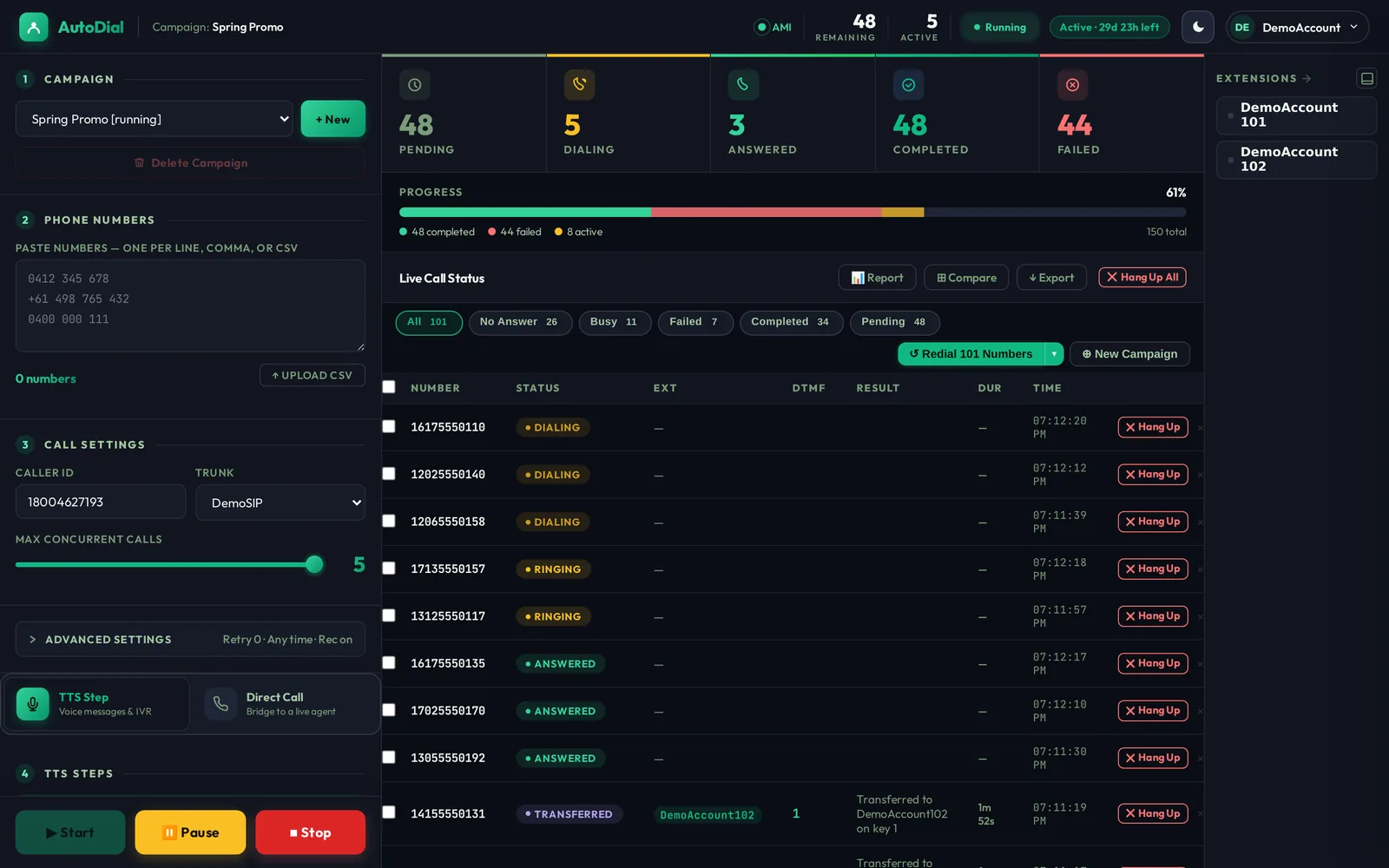
Counters & progress
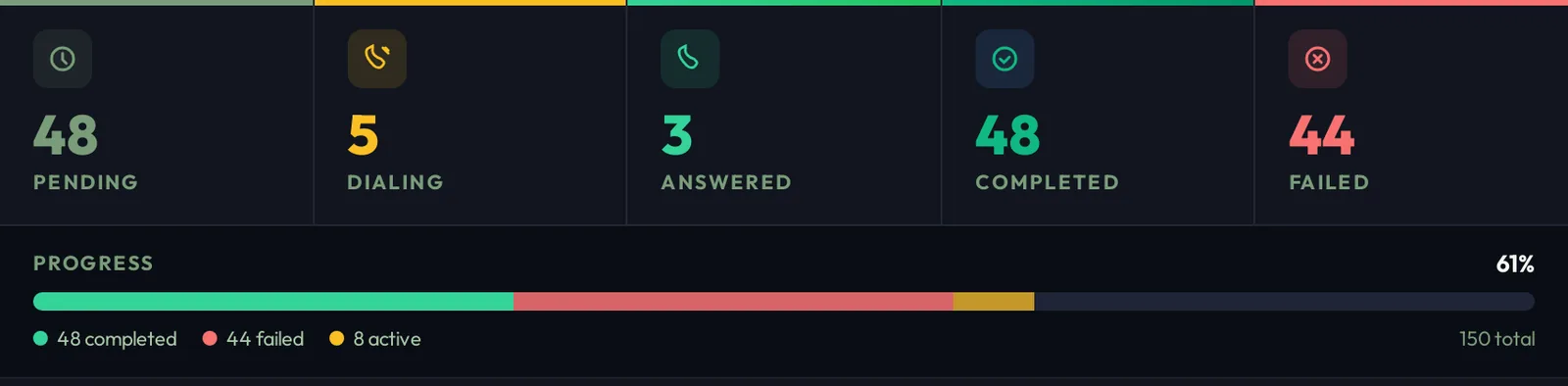
Pending — not called yet · Dialing — being called now · Answered — someone picked up and is listening · Completed — finished calls, transfers included · Failed — no answer, busy or failed. The progress bar shows completed (green), failed (red) and active (yellow) calls, and the percentage done.
Live Call Status table
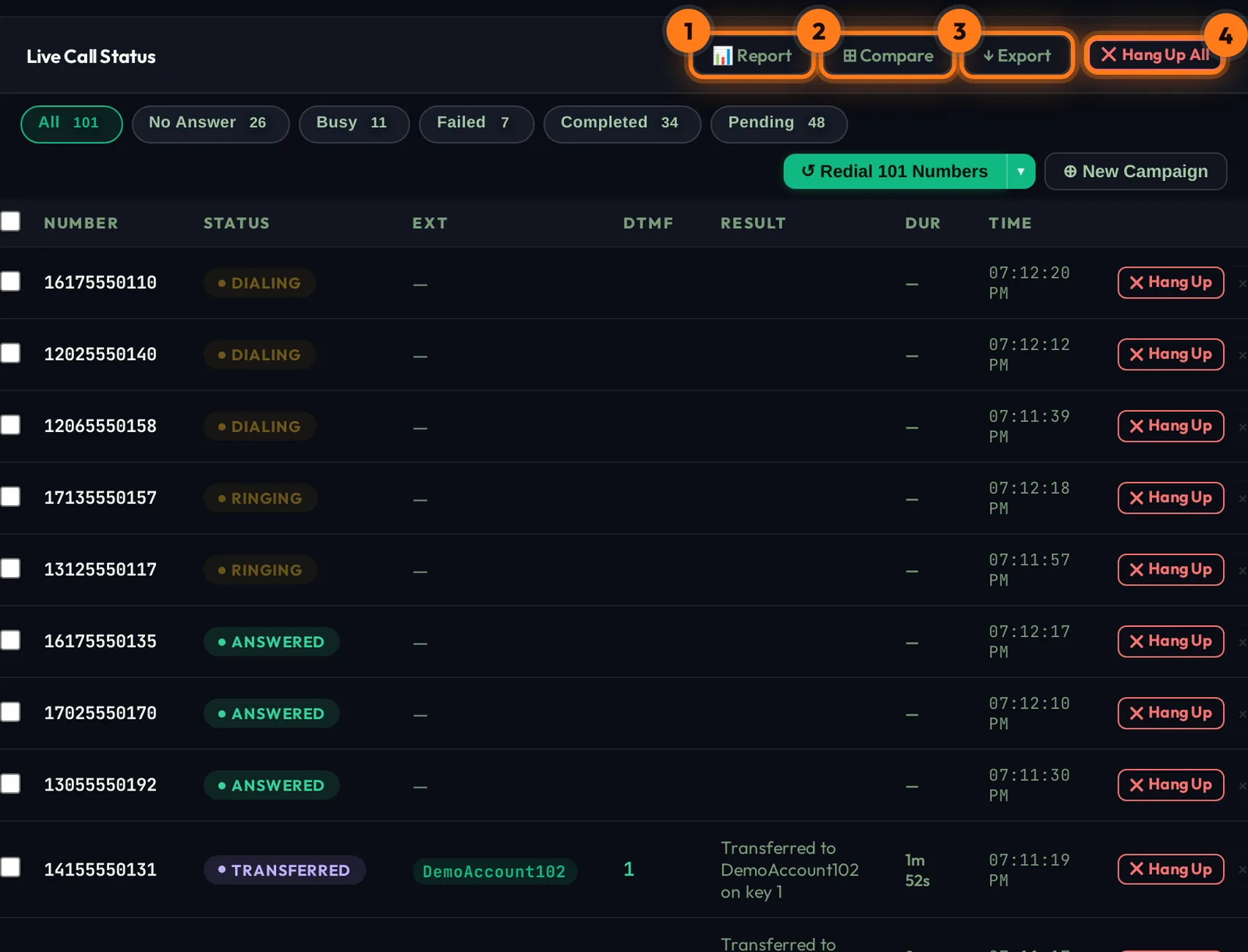
- Report — campaign summary and charts (see Reports).
- Compare — compare the results of several campaigns side by side.
- Export — download the call history as a CSV file.
- Hang Up All — immediately ends every call in progress for this campaign. Each row also has its own Hang Up button.
Columns: Number · Status · EXT (the agent who took the transfer) · DTMF (keys the caller pressed) · Result (details such as 480 No Answer or Transferred to … on key 1) · Dur (call length) · Time. Tick the boxes to select rows. The × at the end of a row removes that number.
What each status means
| Status | Meaning |
|---|---|
| Pending | Waiting in the queue, not called yet. |
| Dialing | The call is being placed. |
| Ringing | The phone is ringing on the other side. |
| Answered | Picked up. The caller is listening to your IVR right now. |
| Transferred | The caller pressed the agent key and was connected to your agent. EXT shows who. |
| Completed | The call finished normally. DTMF shows any keys pressed. |
| No-Answer | Nobody picked up (e.g. 480 No Answer). |
| Busy | The line was busy (486 Busy). |
| Failed | The call could not connect (e.g. 503 Congestion, 404 Not Found), or it was cancelled with Hang Up (result Hung up). |
| Skipped | Not called because the number is on the Do-Not-Call list (result DNC). |
Filters & redial
Look at one kind of result, then call those numbers again or start a new campaign with them.
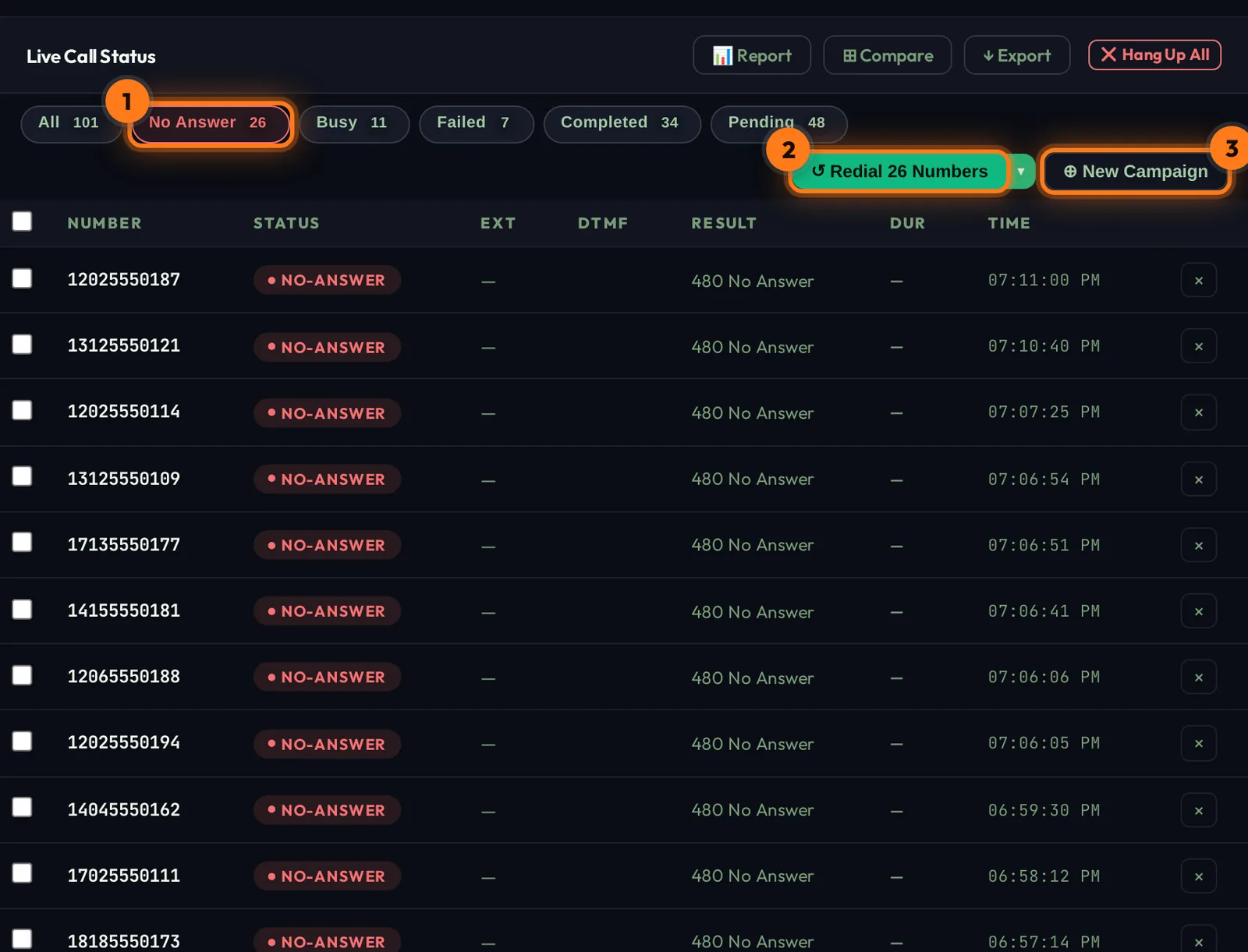
- Filter chips — All, No Answer, Busy, Failed, Completed, Pending. Each shows a count, and clicking one shows only those calls.
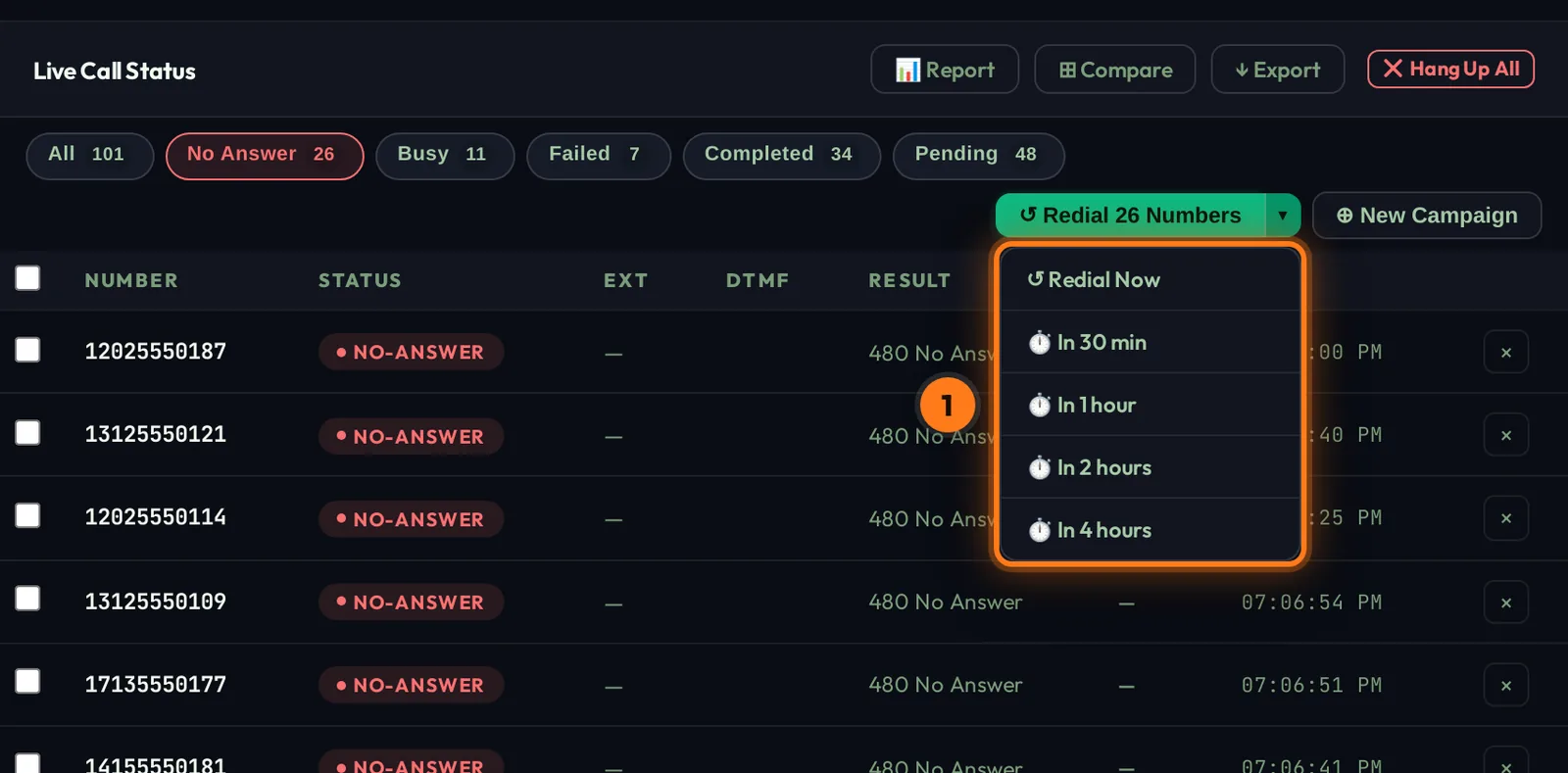
- Redial N Numbers — puts the filtered numbers back in the queue to call again (here the 26 that did not answer).
- New Campaign — copies the filtered numbers into a brand-new campaign, e.g. a follow-up for everyone who was busy.
Pause, resume, stop
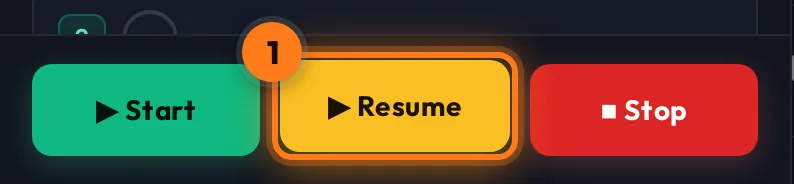
The control buttons change while a campaign is running.
| Button | What it does |
|---|---|
| Pause | Stops dialing new numbers. Calls already in progress continue normally. The status bar shows Paused. |
| Resume | Continues from where you paused. |
| Stop | Ends the run. Numbers not called yet stay Pending, so you can press Start later to call them. |
Reports & export
A summary of how the campaign performed.
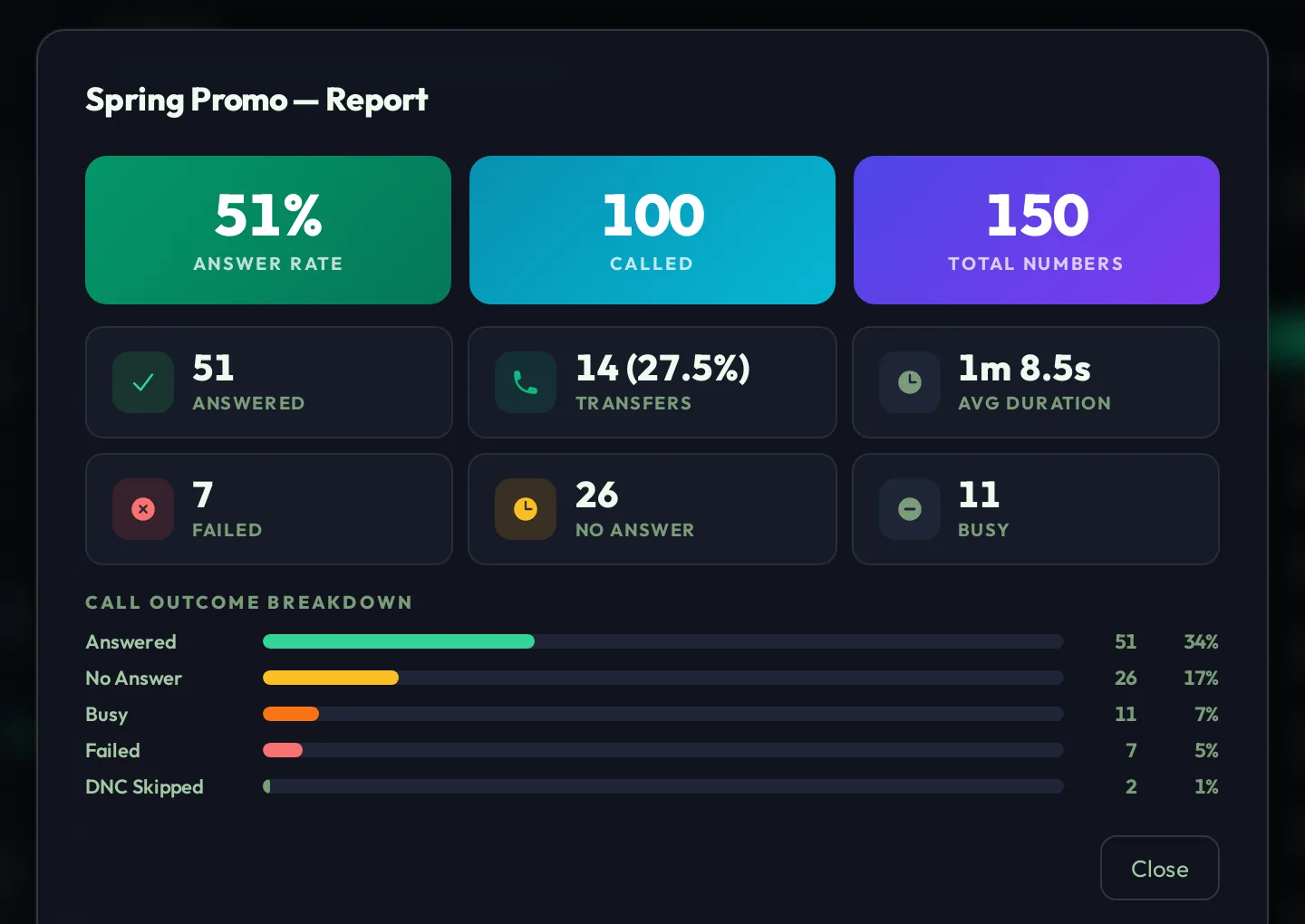
Click Report above the live table.
Answer rate — the share of called numbers that picked up.
Called / Total numbers — numbers dialed so far / numbers in the list.
Answered, Transfers, Avg duration — how many people listened, how many reached an agent (and the percentage), and the average call length.
Failed, No answer, Busy and the outcome breakdown bars.
Compare puts several campaigns side by side. Export downloads every call as a CSV file you can open in Excel or Google Sheets.
Troubleshooting
Quick answers to the most common questions.
I press Start and see “Subscription Required”.
“Step N: Agent Key (DTMF) is required…”
1) in Agent Key, or switch the step to Auto-timer if it should not wait for a key.“Please select a TTS Service / Voice / Language”.
How does an agent pass a call to a colleague?
# on the keypad) and dial the colleague's 3-digit short code, e.g. 102. If the colleague is offline or does not answer within 30 seconds, the call comes back to you. See Agent-to-agent transfer.Callers press 1 but my softphone does not ring.
call.suii.us, port 5060, UDP) and that the extension shows online in the Extensions list. Also check the step's Transfer Extension setting.Some of my numbers were not counted.
1 + 10 digits (e.g. 12025550143). Duplicates are removed automatically, and Do-Not-Call numbers are marked Skipped.